
Features
Everything a file transfer client should be.
Built for people who move files every day: developers deploying sites, admins tending servers, teams living in buckets.
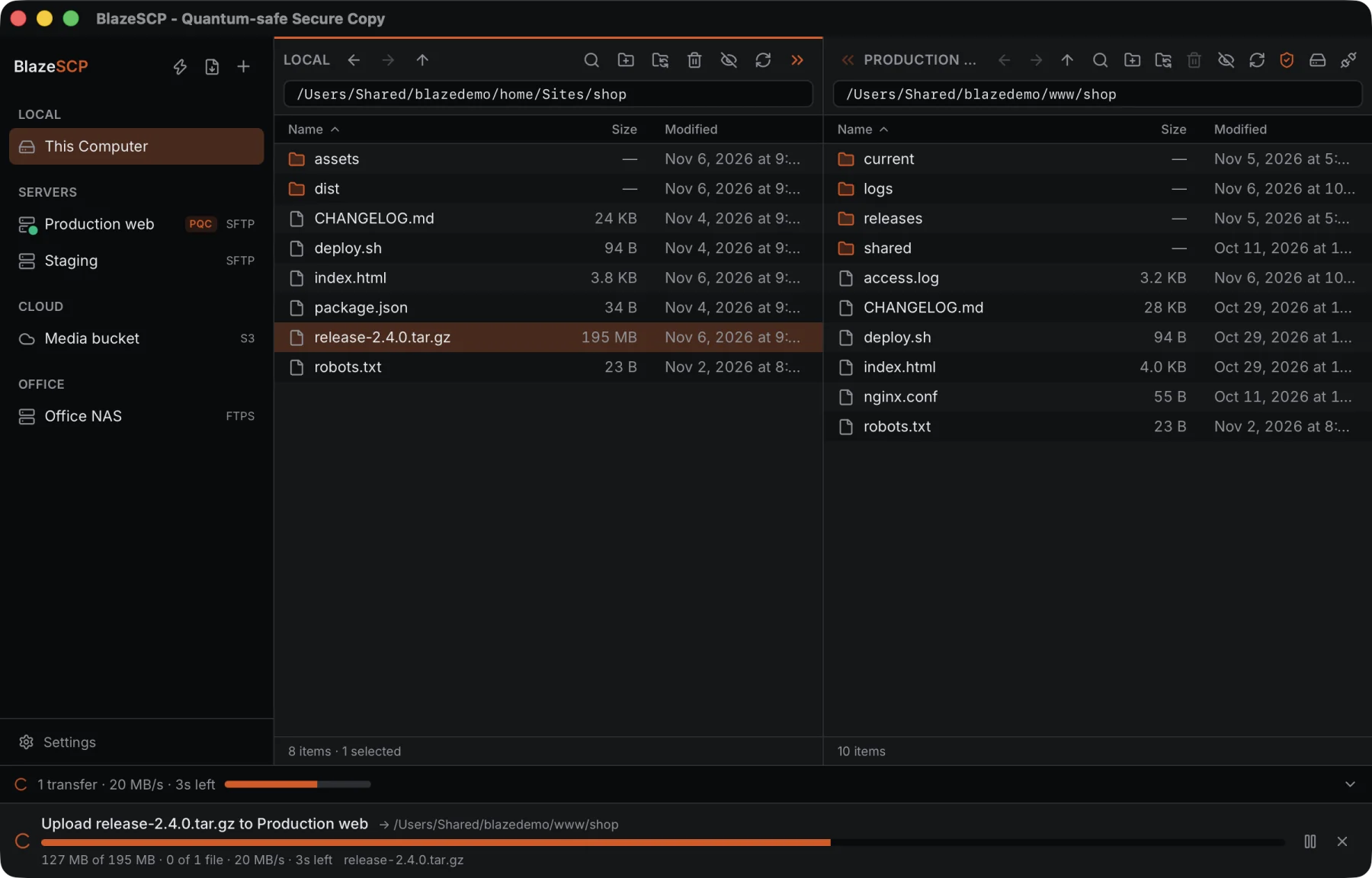
Every protocol you use
One client for your servers, your NAS and your buckets.
- SFTP
- Password, SSH keys (Ed25519, ECDSA, RSA, encrypted or not), the SSH agent including Pageant, and two-factor prompts.
- FTP and FTPS
- Explicit and implicit TLS, passive and active mode, MLSD with a LIST fallback for older servers, resume in both directions.
- WebDAV and WebDAVS
- Basic and Digest authentication, ownCloud and NAS addresses, ranged downloads for resume.
- Nextcloud
- Sign in with your browser (two-factor friendly), chunked uploads for big files, modification times kept, public share links.
- Amazon S3 and compatibles
- Buckets as folders, multipart uploads, automatic bucket regions, custom endpoints for R2, Wasabi, MinIO, DigitalOcean Spaces and more.
- Azure Blob, Google Cloud Storage, Backblaze B2
- Account keys or SAS tokens for Azure, service account keys for Google, application keys for B2. Containers and buckets as folders.
A browser built for two
See both ends of a transfer at once.
- Dual pane
- Local and remote side by side, or two different servers for direct server-to-server copies.
- Tabs
- Open any folder in a new tab; each tab keeps its own folder and history while you work elsewhere.
- Fast with huge folders
- Virtualised lists stay smooth with tens of thousands of entries. Sort by name, size or date; filter as you type.
- Everything a right-click away
- Get Info, rename, duplicate, new file or folder, copy path, permissions, delete.
- Drag and drop
- Drop files in from Finder or Explorer, drag between panes to copy, drag within a server to move.
- Quick Look
- Press Space to preview text, images and PDFs without downloading them first; arrow keys move to the next file.
- Edit in your own editor
- Open a remote file in VS Code, TextEdit or any app: every save is uploaded back, and you're asked first if the server's copy changed.
- Keyboard first
- Arrow-key navigation, ⌘F filter, ⌘I info, ⌘D duplicate, ⌘T tabs, ⌘→ to send the selection to the other pane.
Transfers you can trust
A queue that survives dropped connections, sleep and restarts.
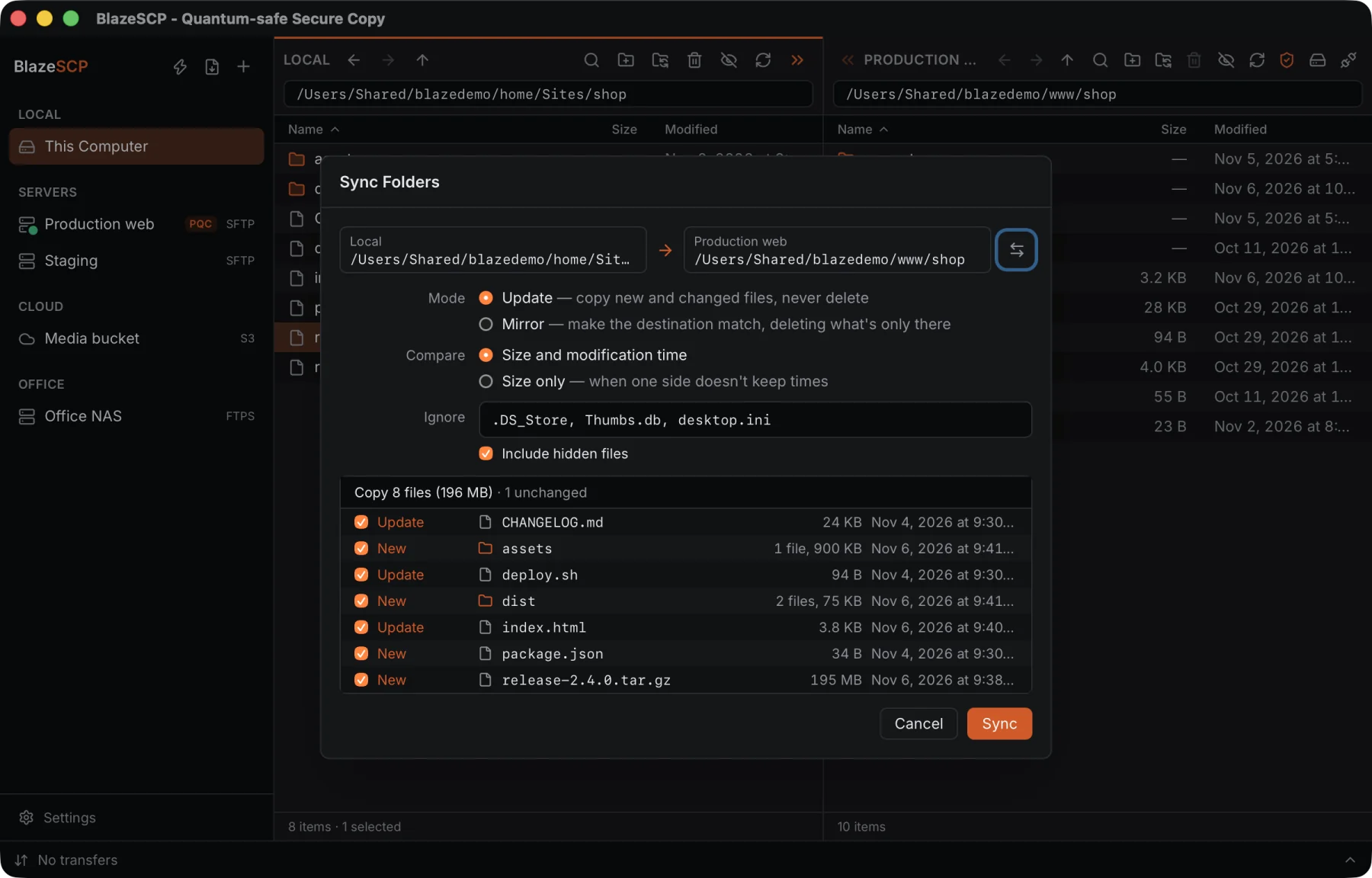
- Folder sync with preview
- Compare two folders on any two servers, see every copy and deletion first, then update or mirror. Ignore rules like .git or *.tmp.
- Pause, resume, retry
- Per job, at any time. Dropped connections are retried automatically and continue from the last byte.
- Survives quitting
- The queue is saved as it runs. Reopen BlazeSCP and interrupted transfers are waiting, ready to resume.
- Conflict rules
- Overwrite, skip, keep both, resume, or replace only when newer, chosen once for the whole transfer.
- Server-side copy
- Copies within the same S3, WebDAV or local disk happen on the server, without the data passing through your machine.
- Verify after transfer
- Size check on every file, and a SHA-256 comparison where both sides can hash (your computer, SSH servers with shell access).
- Bandwidth and parallelism
- A shared speed limit for all transfers and 1 to 16 files at once, adjustable while transfers run.
Get connected faster
From a URL or your existing SSH setup to an open folder in seconds.
- Quick Connect
- ⌘K, type sftp://user@host, done. Nothing is saved unless you choose to keep the server.
- Import from ~/.ssh/config
- Your Host entries become servers, with their users, ports and keys.
- sftp:// links
- Links in your browser or chat open straight in BlazeSCP.
- Groups
- Organise servers into folders in the sidebar; connection status at a glance.
- Jump hosts and proxies
- Reach servers through a bastion (chains too, ProxyJump imported from ~/.ssh/config), or a SOCKS5 or HTTP proxy.
- Mount as a drive
- Open a server in Finder, Explorer or your file manager, as a drive named BlazeSCP. No kernel extension needed.
Cloud extras
The cloud features you'd otherwise open a console for.
- Share links
- Copy a download link valid for 24 hours: presigned on S3, Azure and Google Cloud Storage, a public link on Nextcloud.
- Create buckets
- New folders at the top level are new buckets.
- Region detection
- Buckets in any region just work from one account.
Works with your AI assistant
A local MCP server, so assistants can use BlazeSCP for you.
- Claude, Gemini, Codex and more
- Claude Code, Gemini CLI, Codex CLI, Claude Desktop, Cursor and any other MCP client. Settings gives the exact setup command.
- Servers on request
- Ask your assistant to list, add or edit servers, look inside a connected server, or check on transfers.
- Stays on your computer
- The server only listens locally, needs a token, and refuses web pages. Passwords can be set but are never read back.
- Your call, server by server
- Make each saved server Read & write, Read only or Not accessible: assistants never see one you hide. Allow changes off makes them all read only, or turn the server off entirely.
Native on every desktop
Built in Rust with Tauri: small, fast and memory-safe.
- macOS, Windows, Linux
- Apple silicon and Intel; Windows 10 and 11 on x64 and ARM64; .deb and .rpm for amd64 and arm64.
- Light, dark and your color
- Follows your system theme, or choose one in Settings, with an accent color: orange, blue, green, purple or your own.
- Six languages
- The app is available in English, Français, Deutsch, Español, 日本語 and 简体中文. Switch in Settings → General → Language.
- Notifications
- Hear when a long transfer finishes while you're in another app.
- Automatic updates
- Signed, checked in the background, installed only when you say so. An icon in the corner tells you one is ready.
On the roadmap
What we're building next. Not in the app yet.
- Two-way folder sync
- Google Drive, Dropbox, OneDrive and Box
- Encrypted settings sync across your devices
- Batch rename and file comparison
- Scheduled transfers and transfer history
- OpenStack Swift
Your next upload could be quantum-safe.
Free for personal use, on every platform.